
2.0 KiB
2.0 KiB
Gitea ssh setup
This guide assumes you have registered and verified your account with an @RU.IS email address. If you have not setup your account yet, you must do that first. The gitea server at RU is on port 2222. It does not respond on the usual port 22
Installing ssh keys into Gitea
- If you don't have an ssh key, generate one now following the guide on the (main ssh page)[index.md]
- Login to gitea.cs.ru.is
- Click on your user Icon on the top right and choose "Settings" in the dropdown
- On the Left, click on "SSH / GPG Keys"
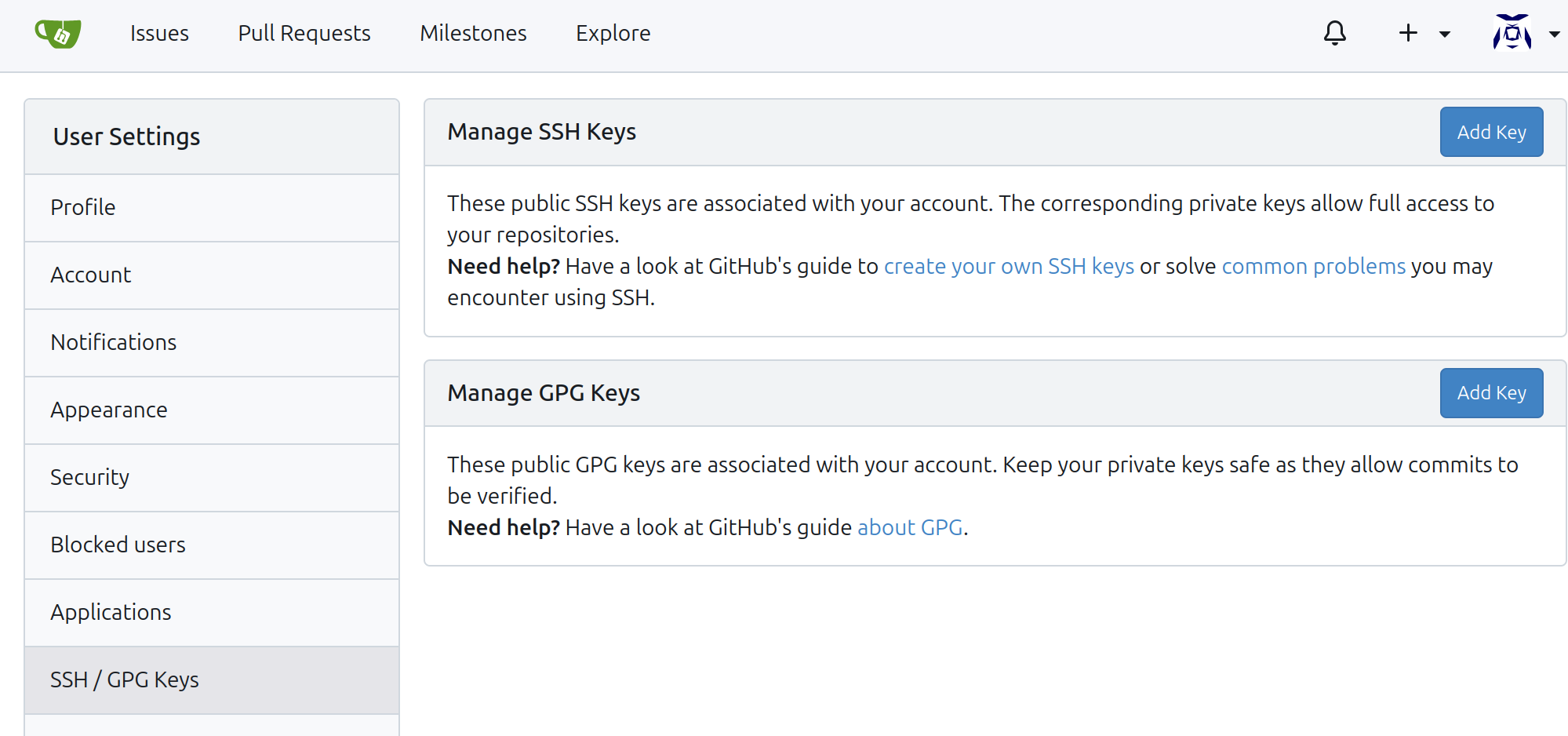
- copy the contents of
~/.ssh/id_ed25519.pubinto the text box and click "Add Key". On windows you can view it in Notepad to cut and paste it.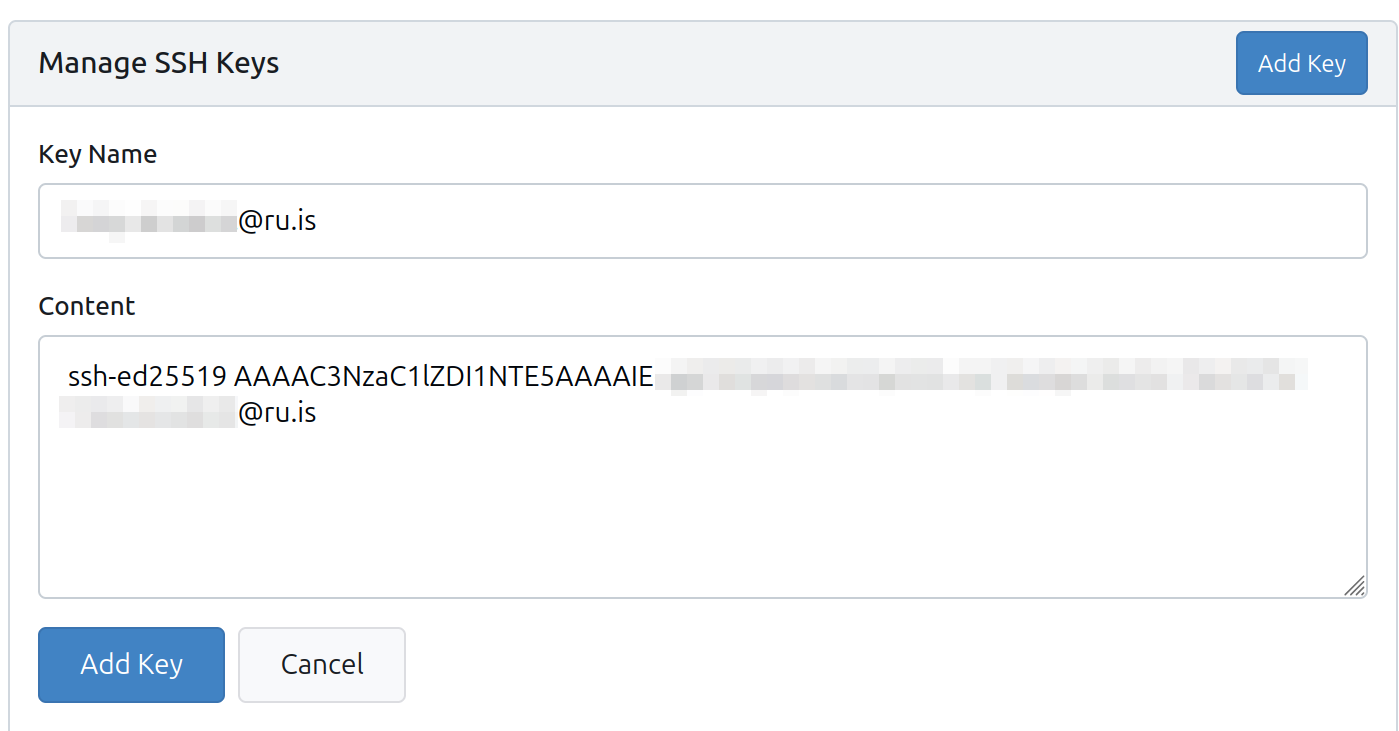
- It will then want you to verify the key by running a
ssh-keygen. You will need to tell it where your public key is, typically `~/.ssh/id_ed25519.pub. This process must be done quickly as the tokens expire!!!- First look at the validation information given. This guide assumes you are on linux of some sort, but there are directions for Windows also listed
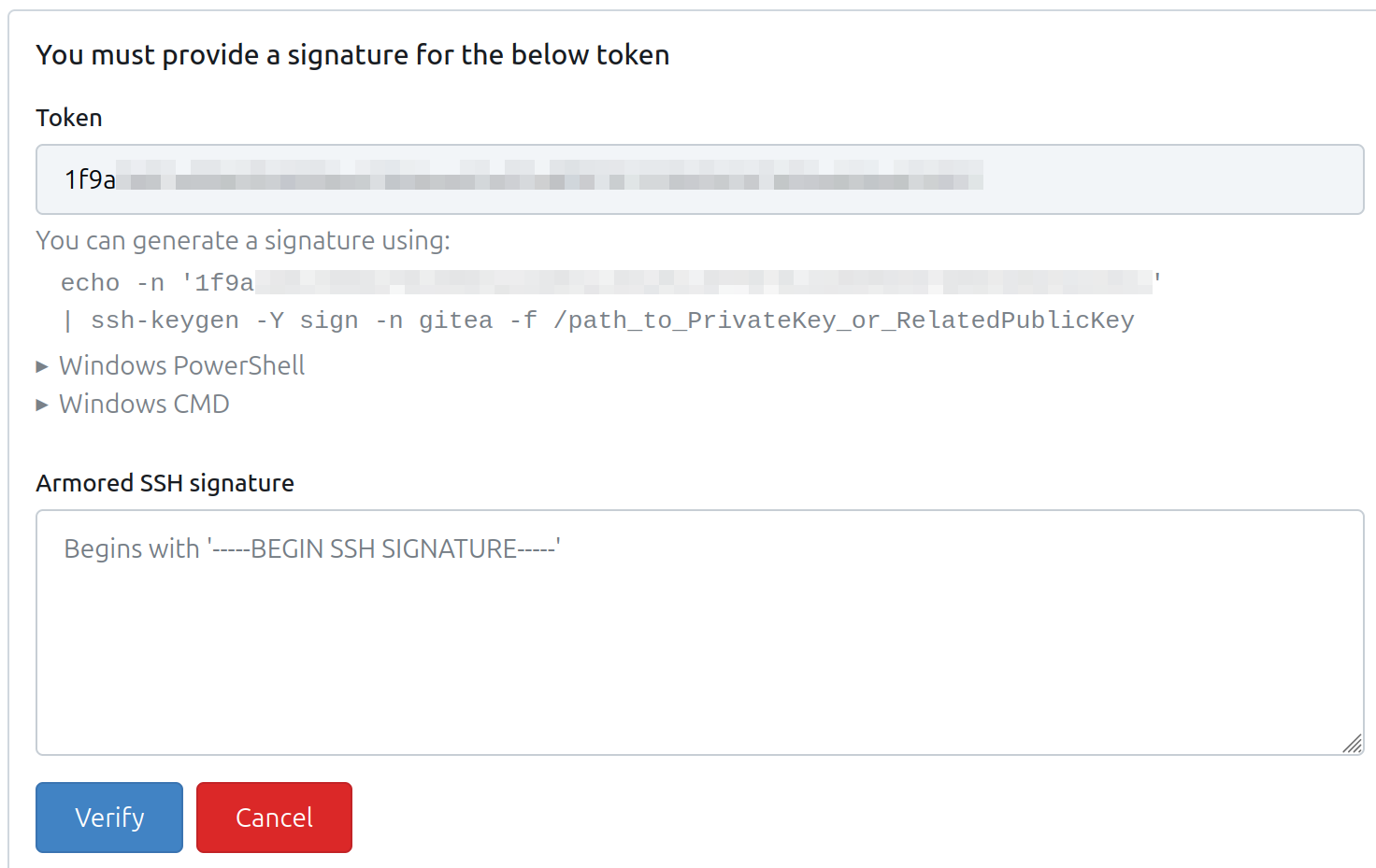
- Open a command shell (if you weren't already) and run the ssh-keygen command to sign the token with your key
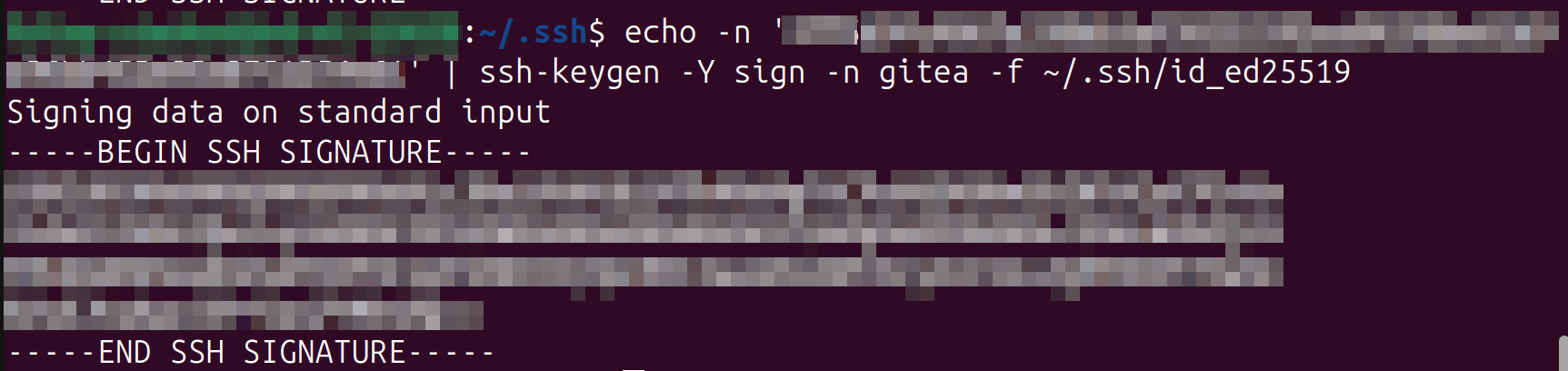
- Paste the results into the "Armored SSH signature" area
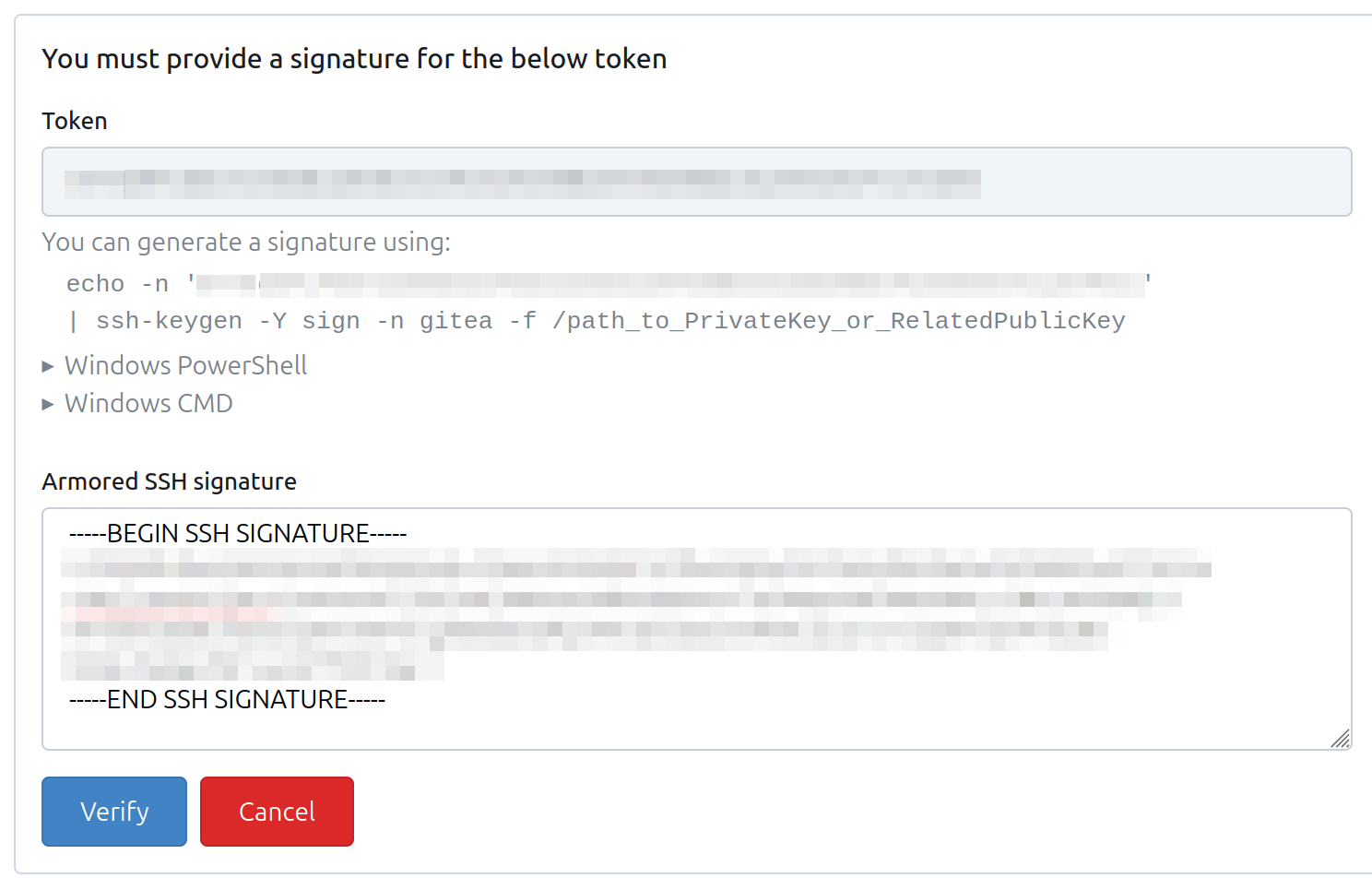
- Click "Verify"
- First look at the validation information given. This guide assumes you are on linux of some sort, but there are directions for Windows also listed
- If validation is done quickly and with the right key, you will see confirmation



Testing
If you have ssh setup properly with gitea, you should be able to test it this way:
